

Installation & activation of the umpire app
The umpire app is used to keep score in a match. Every point is sent live to Scoreboard Live, so the score can be shown on TV screens and followed online. The app works on most Android phones and tablets, as long as they are not too old (Android version 5 or newer).
Get a Google account for your device (unless you already have one)
To install the app on your device you need access to Google Play Store, and for that you need a Google account on your device. Instructions how to get one can be found here: https://support.google.com/googleplay/answer/2521798.
Install the app
Here's a direct link to the app on Google Play Store: https://play.google.com/store/apps/details?id=com.eltok.scoreboardliveumpireapp
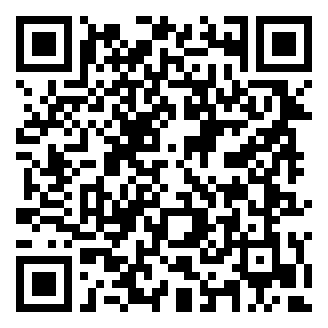
Or scan this QR code with your device to open the same link:
or
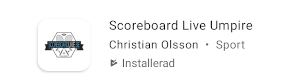
Open Google Play Store on your device and search for Scoreboard Live Umpire. In the search results, look for Scoreboard Live Umpire by Christian Olsson and click Install.
Settings for the umpire app
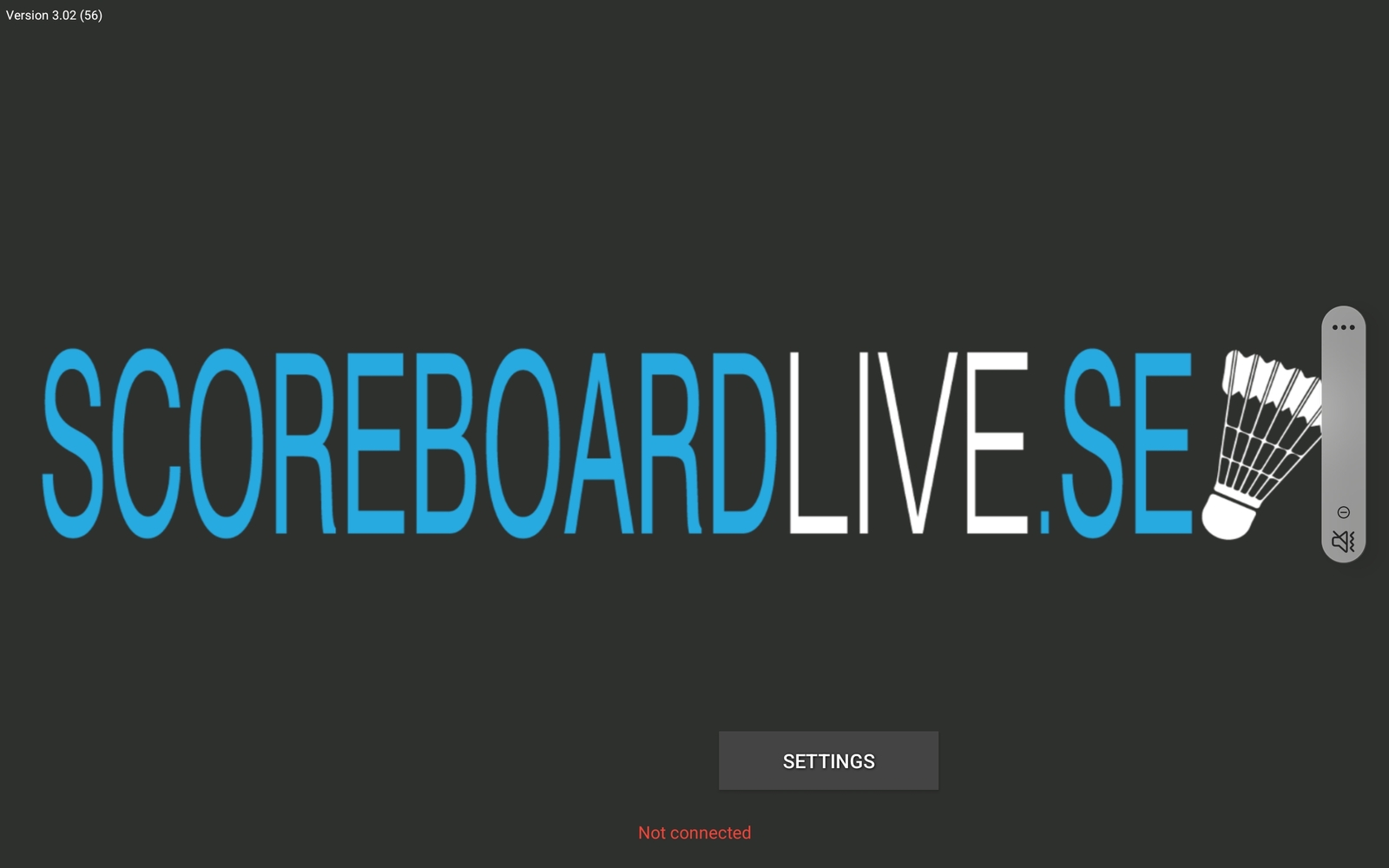
To be able to use the device it needs to be registered with the Scoreboard Live web site. The first time the umpire app is opened, a label Not connected will show in red at the bottom of the app start screen.
- Click Settings
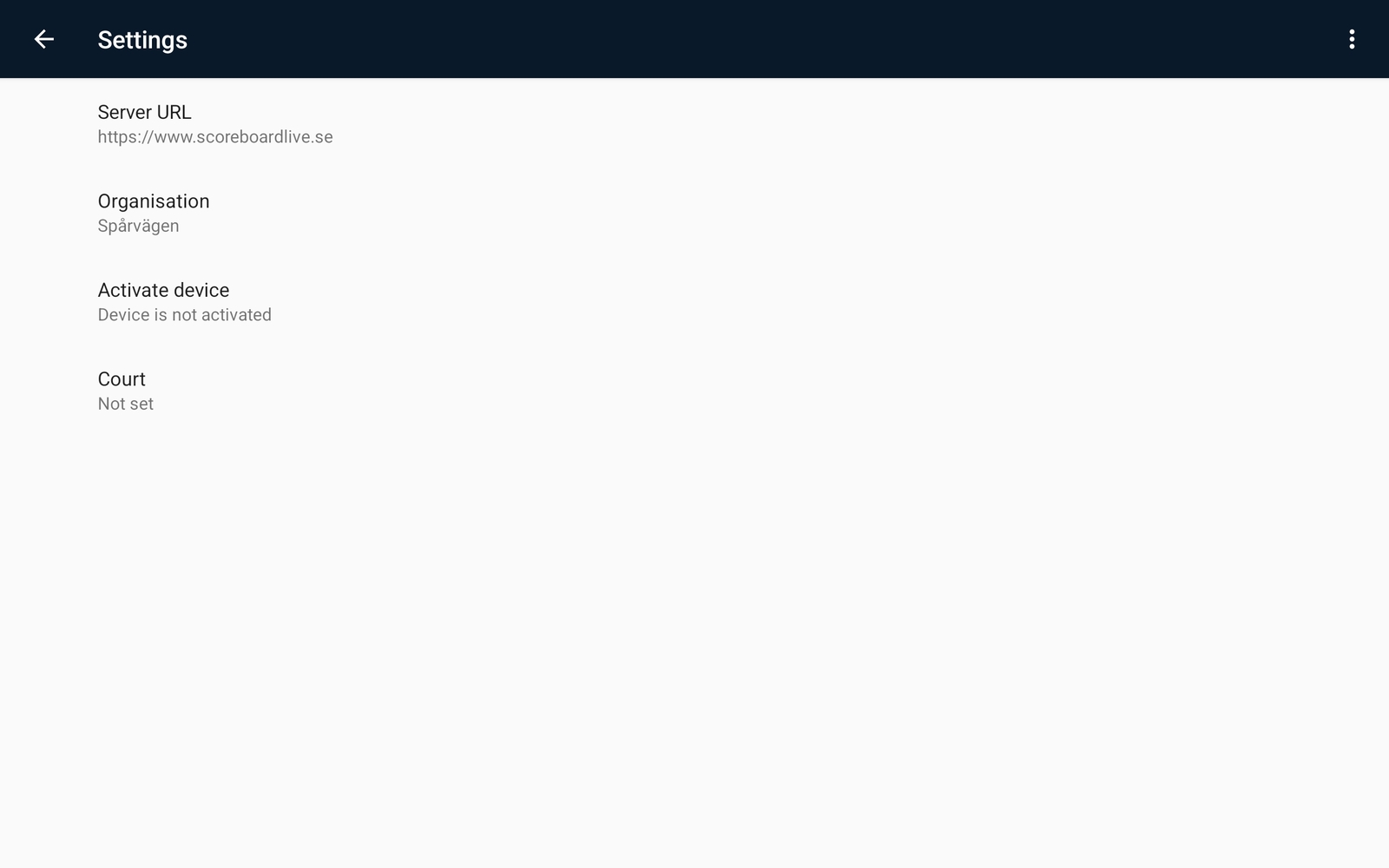
- Make sure the Server URL is correct. It should be https://www.scoreboardlive.se
- Click Organisation and select the club or organisation the device belongs to.
Activate the device
The next step is to register the device on the scoreboardlive.se website. Note that the Activate device setting in the app is locked until an organisation has been selected.
- Log in with your credentials at https://www.scoreboardlive.se/auth/login
- Click Devices at the top of the page.
- Click the button Add new device
An activation code will appear in green on the screen. Head back to the settings screen in the umpire application:
- Click Activate device, enter the activation code displayed on the web page and click Activate.
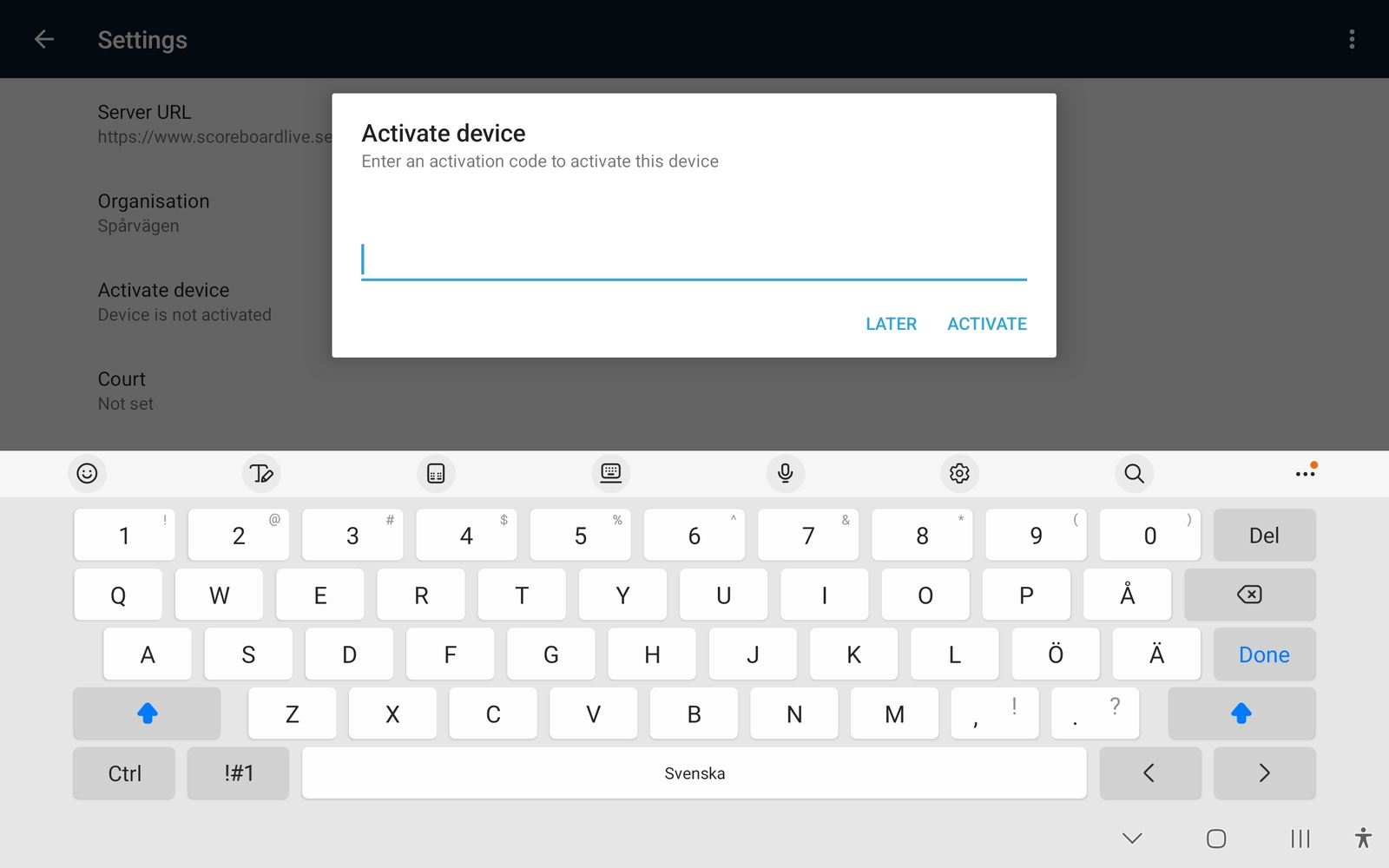
If the activation code is correct, the device will be registered with the scoreboardlive.se webpage, and the settings screen will show Device is activated together with the code.
- Finally, click Court and select the court this device will be used on.
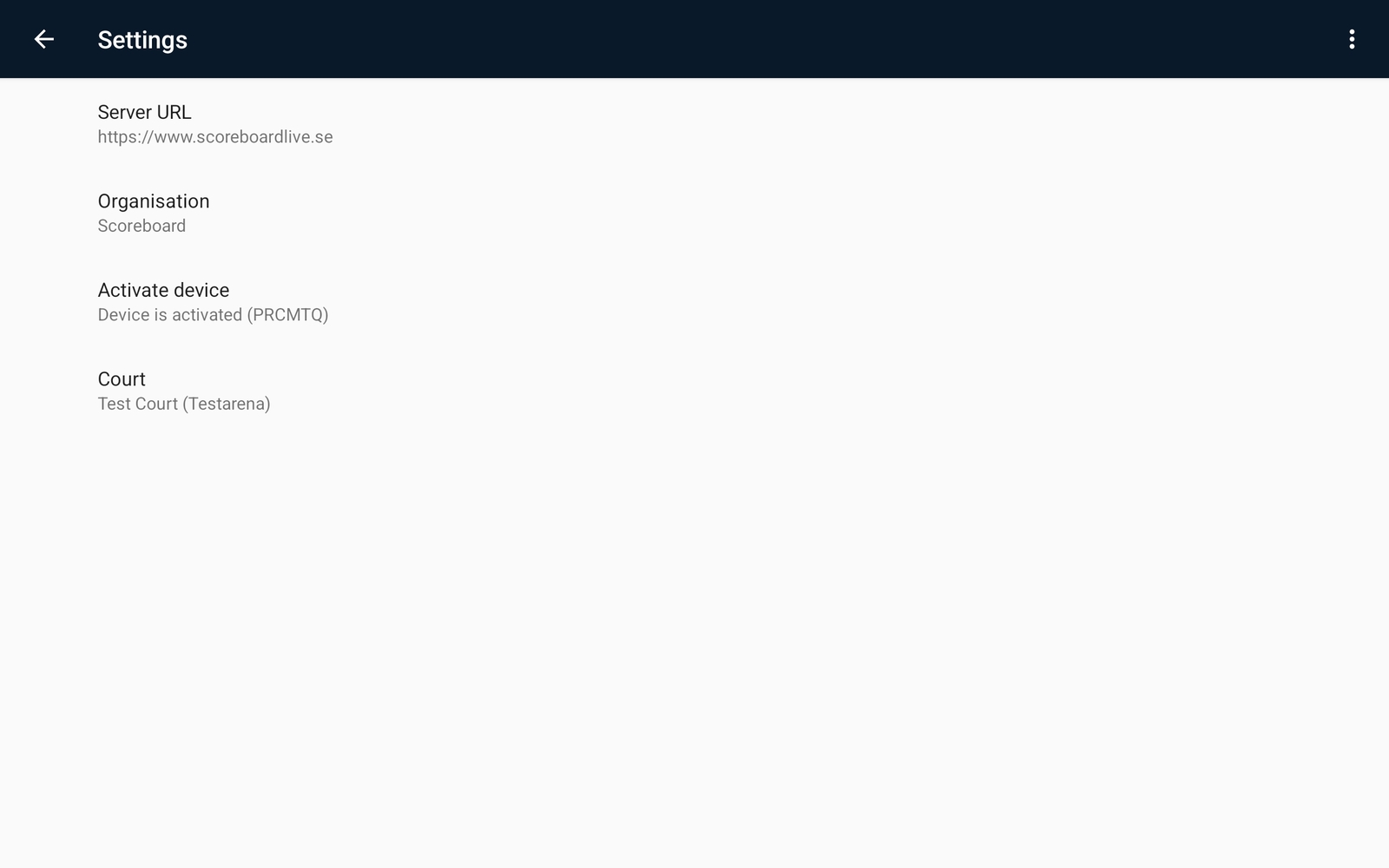
When all settings are done, press the back arrow to go back to the app start screen. If all is well, a green label Connected will show at the bottom of the screen, and the New match button will appear.