


Score a match
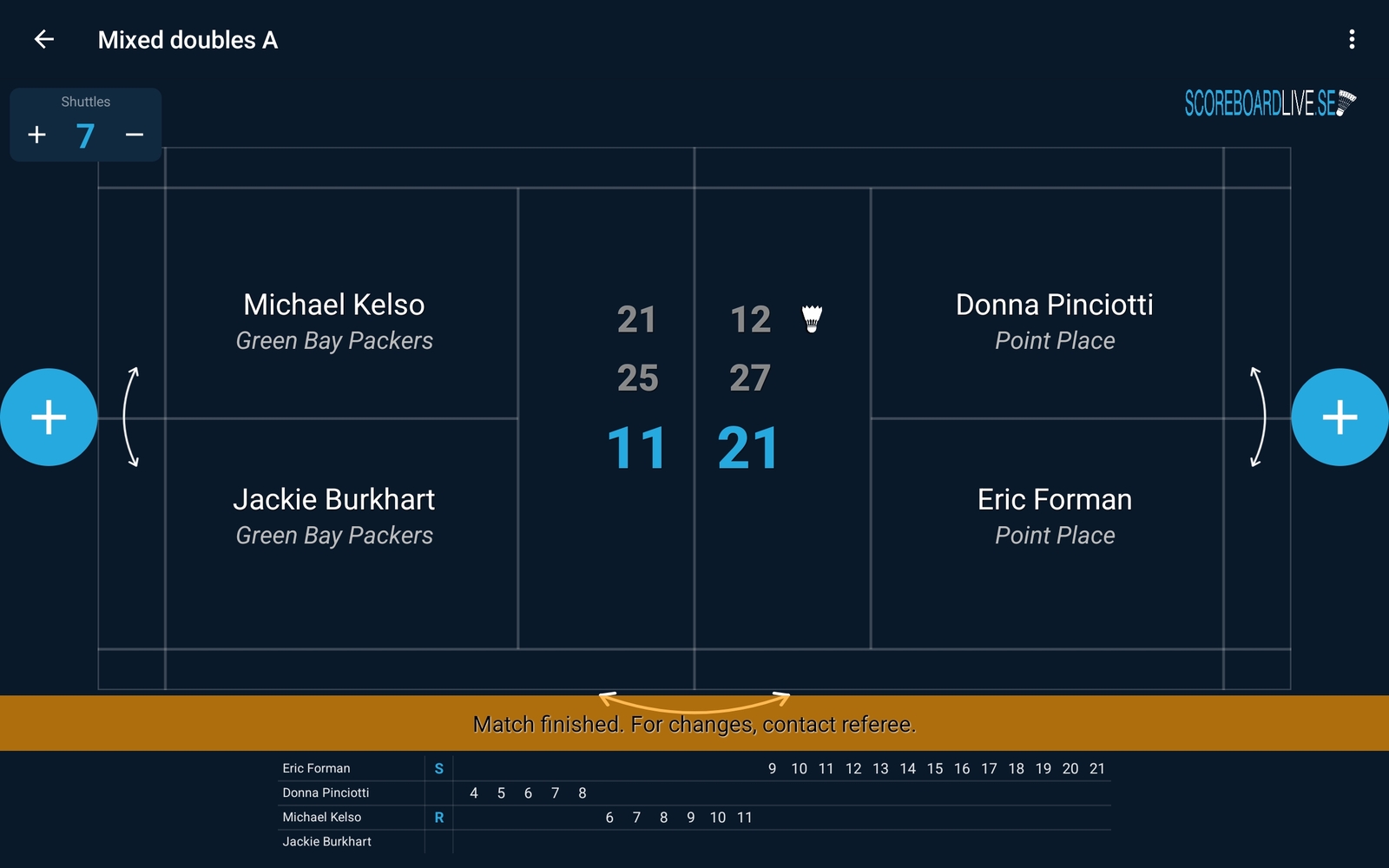
When a match is loaded, the scoreboard view opens. It shows a badminton court with the players (and their club or team) placed as they stand on court, the score in the middle, and a point history at the bottom.
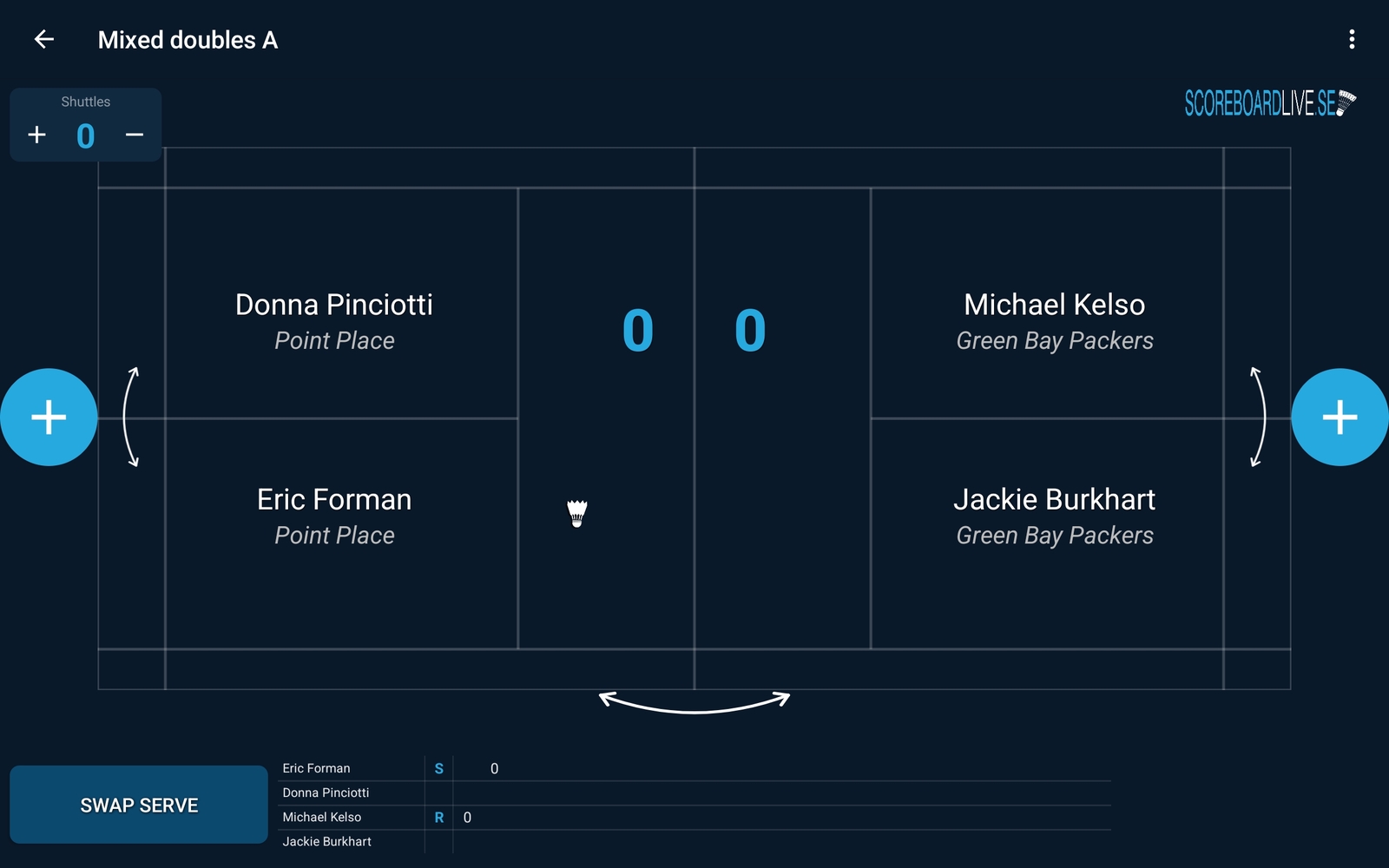
- The big number in the middle is the current game. Finished games are shown in smaller numbers above it.
- A shuttle icon on the court marks the player serving next.
- In the point history at the bottom, S marks the first server of the game and R the first receiver.
- The Shuttles counter in the top left corner keeps track of the number of shuttles used. Adjust it with the + and − buttons.
Before the game starts
Before the first serve of a game you can set up who serves and where the players stand:
- Swap serve (bottom left) moves the first serve to the other side.
- The curved vertical arrows on the far left and right swap the two players in a doubles pair.
- The curved arrow below the net swaps the two sides on the screen, so the scoreboard matches the court as seen from where you sit. This only changes the display.
Register points
Tap the round + button on the side that won the rally. The app moves the serve and the players around automatically according to the score.
Made a mistake? Click Undo last in the bottom right corner to take back the last point. Undo can be repeated to step further back, and it also works right after a game has finished.
Intervals
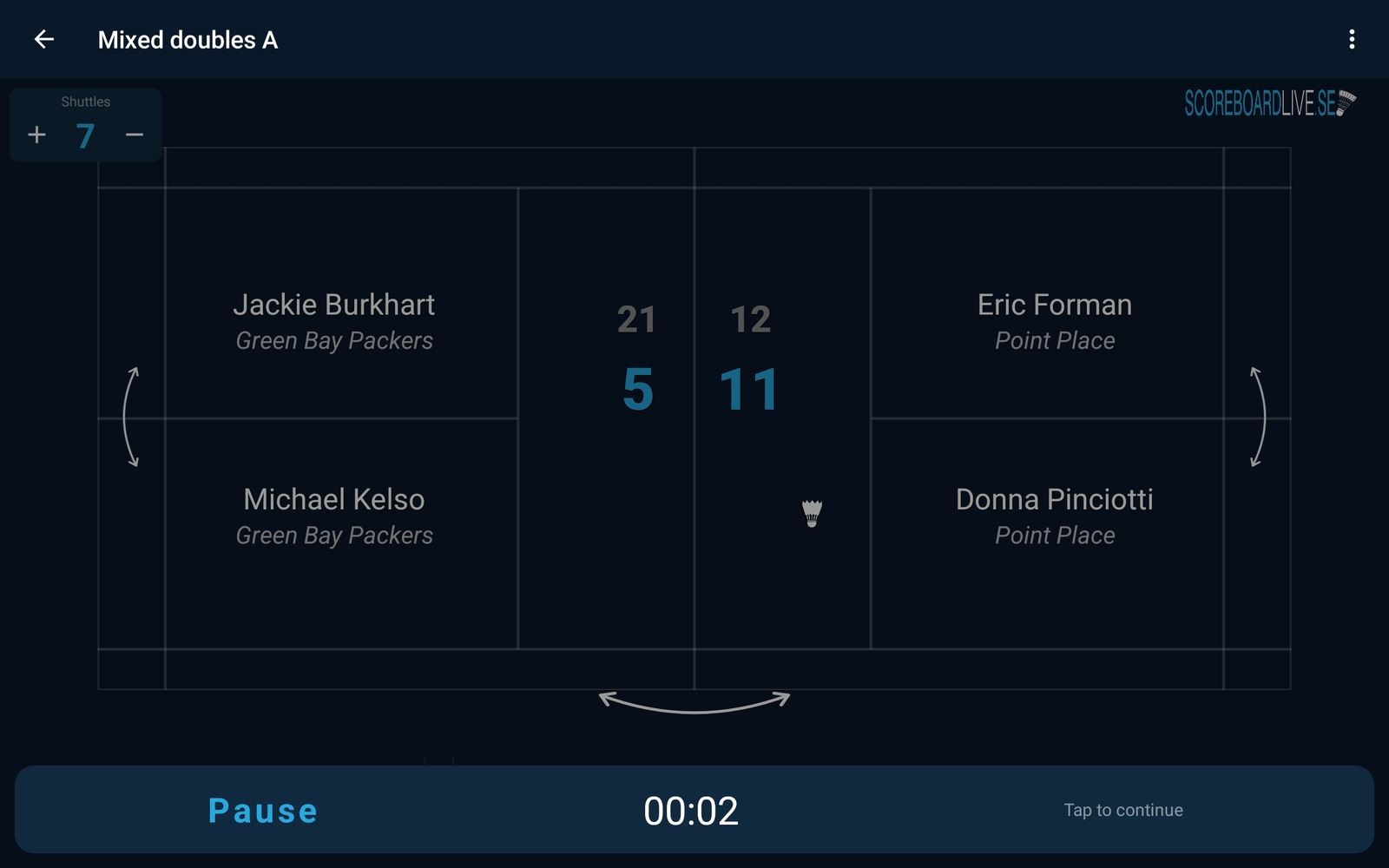
The app pauses the match automatically at mid-game and between games. A pause screen with a timer covers the scoreboard; tap anywhere to continue playing. You can also start a pause manually with the Pause button.
Confirm game results
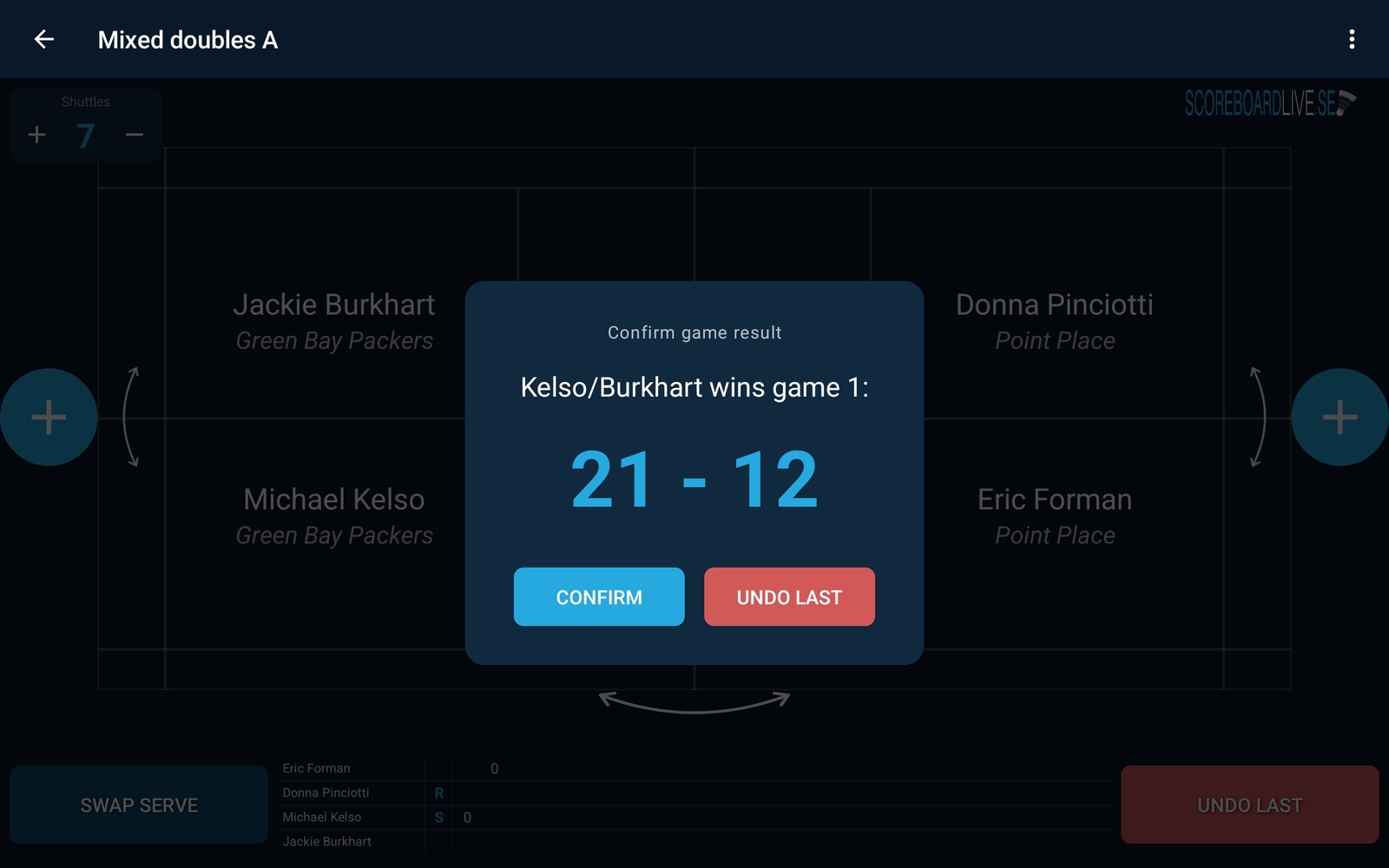
When a game is finished the app asks you to confirm the result. Click Confirm if the score is correct. If the last point was registered by mistake, click Undo last instead — the point is taken back and the game continues. The numbers can not be edited by hand; use undo to correct the score.
Court events
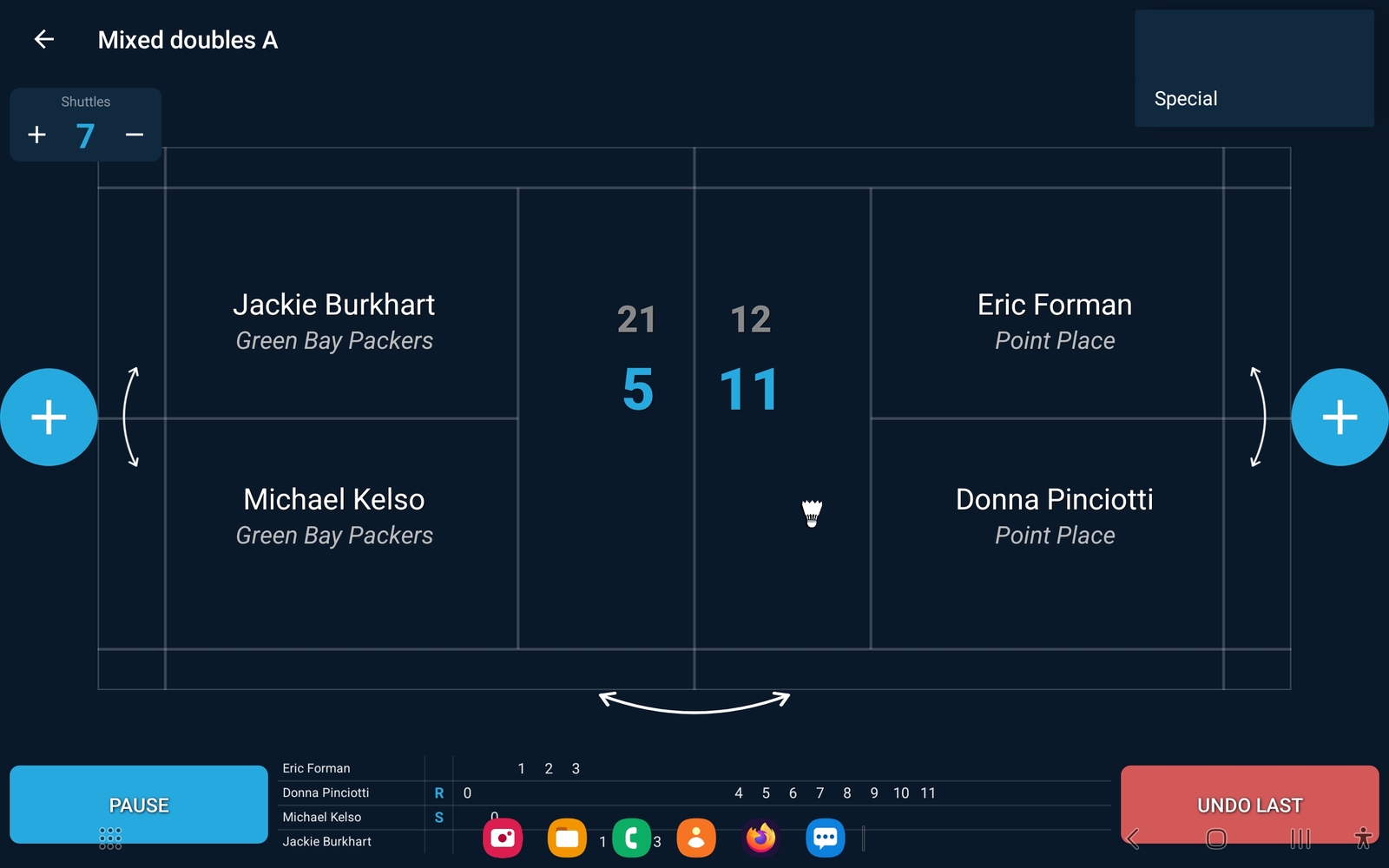
Other events on court are registered from the menu in the top right corner. Open it and click Special:
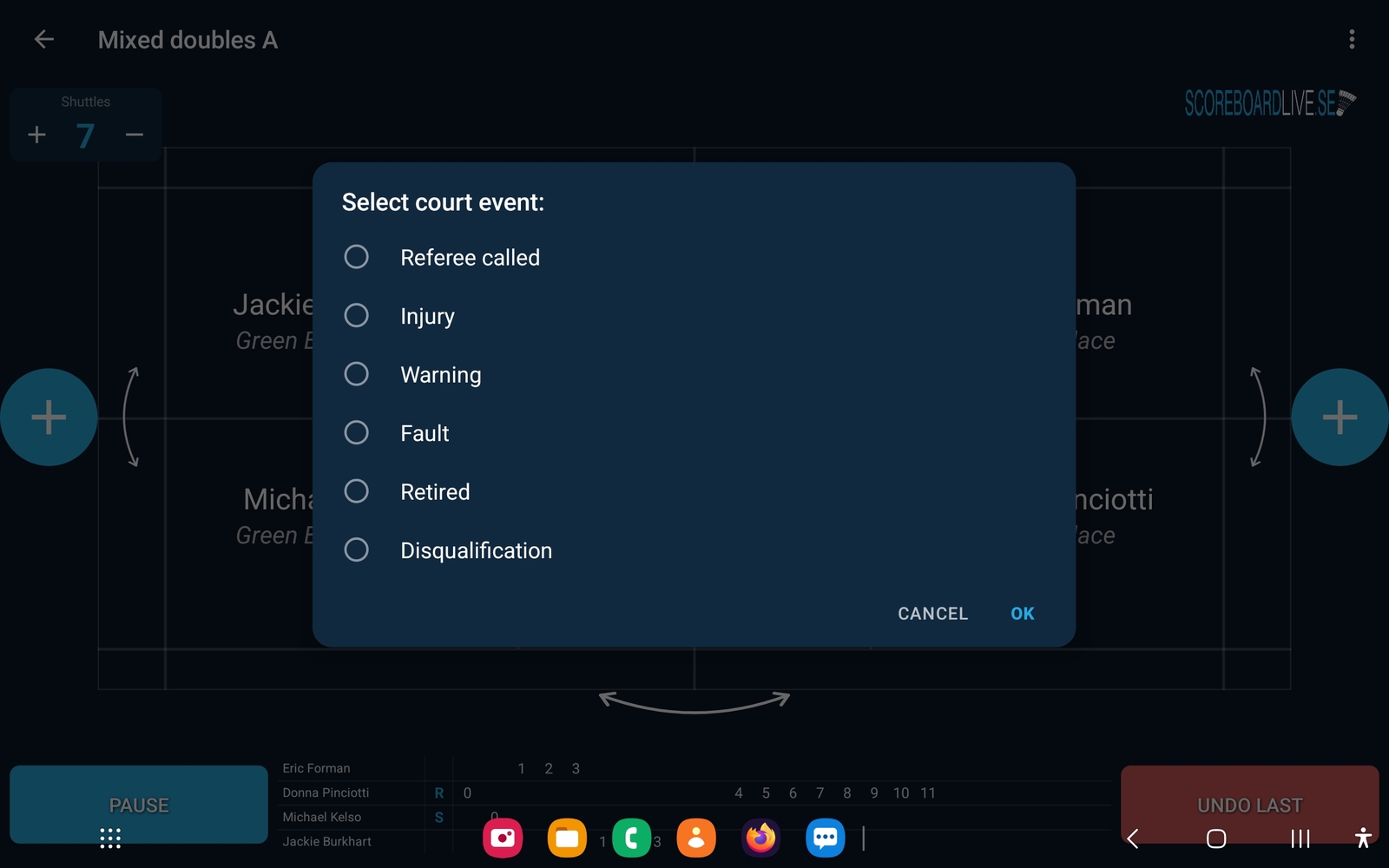
- Referee called — indicator that the referee was called to this court.
- Injury — a player is injured.
- Warning — a player receives a warning.
- Fault — a player is faulted; the opponents are awarded a point.
- Retired — a player gives up; the opponents win the match.
- Disqualification — a player is disqualified; the opponents win the match.
For everything except Referee called, the app then asks which player the event applies to. The event is sent to the live score displays, and a marker is shown next to the player on the scoreboard.
When the match is finished
After the last game, confirm the result as usual:
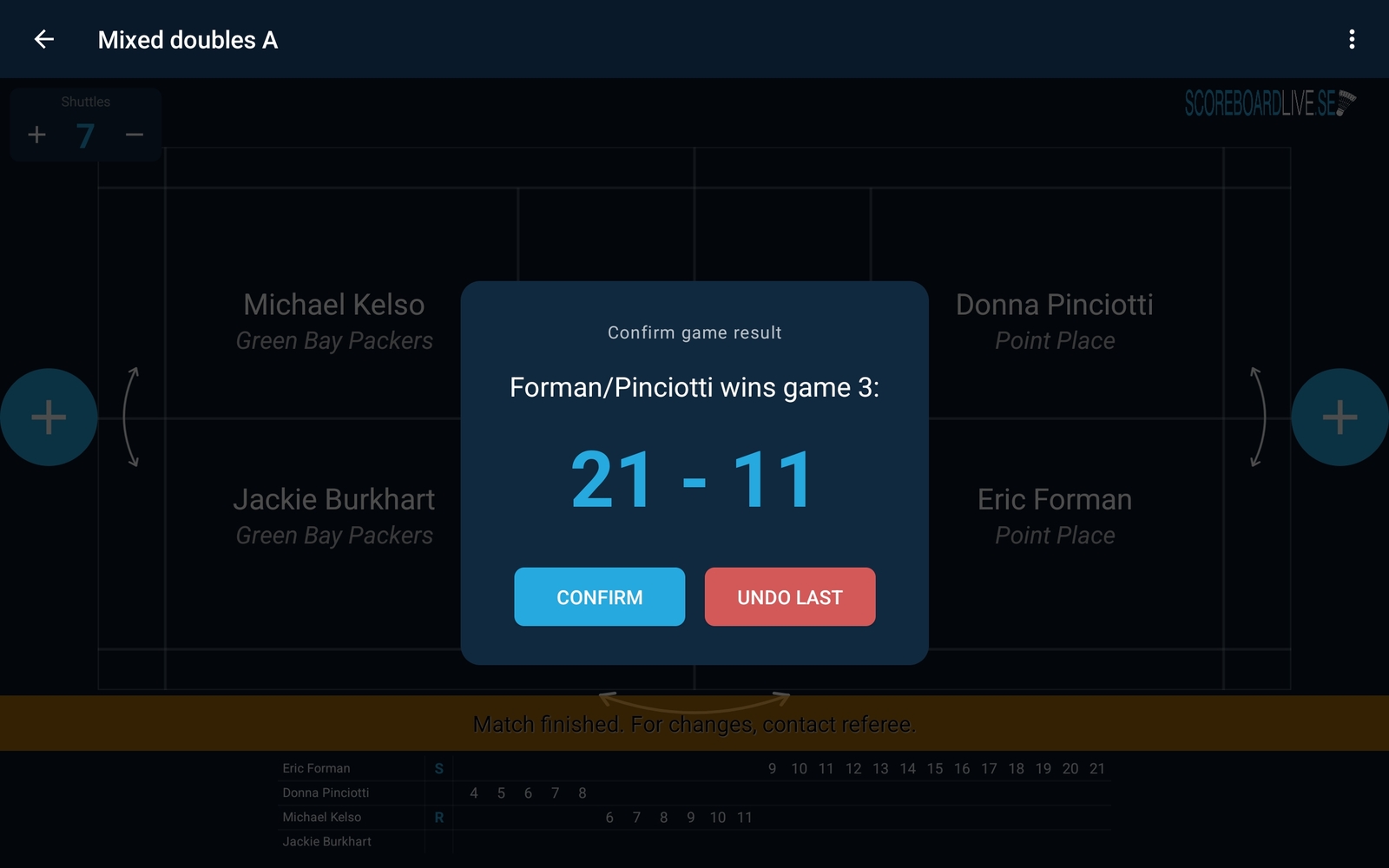
The match is now locked and the scoreboard becomes read-only, showing the message Match finished. For changes, contact referee. If the result needs to be changed after this point, it has to be done by a tournament administrator on the Scoreboard Live website.
Scoring systems
The counting rules — how many games are played and to how many points — follow the match settings in the tournament, so there is nothing to set up in the app.