


Load a match
From the start screen
When the Scoreboard Live Umpire app is launched a start screen will appear. If all settings are correct and the device is registered to the scoreboardlive.se webpage, a label Connected will show in green at the bottom of the screen (see Installation & activation). Click New match to open the match list.
Select a match
In the view Select match you choose which match to load. The view looks a bit different depending on the screen size of the device: on a tablet the categories are listed to the left with the matches next to them, on a phone the match list opens when you click a category.
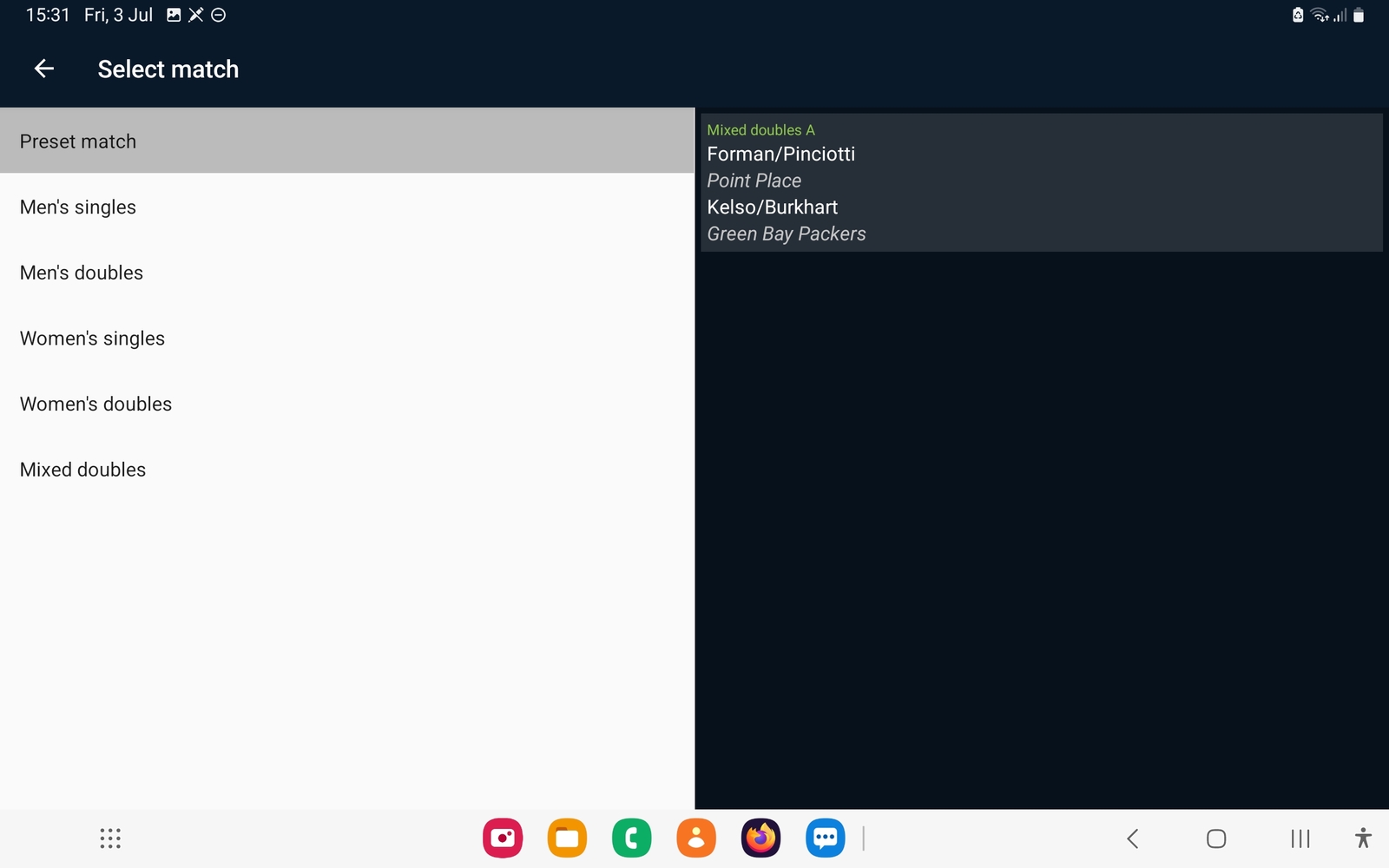
- Preset match shows the match assigned to the court the device is connected to. This is the normal way to load a match: assign a match to the court on the website, and it will show up here. This is also the match displayed as default in the view.
- The category headings (Men's singles, Men's doubles and so on) list all available matches in that category.
It is only possible to load matches in published tournaments with the correct date. An exception is the court preset match, which can be loaded anytime.
Click the match you want to load, and the scoreboard view opens. If the match has already been started, the points registered so far are loaded as well, so you can continue where the match left off.
Load a new match from the scoreboard
To leave a match and load a new one, press the back arrow in the top left corner of the scoreboard. If the match is not finished yet, the app will ask you to confirm before going back to the main menu. From the start screen, click New match as usual.